CUSTOMERS · CUSTOMER PROFILE
Find payments by customer or payment profile
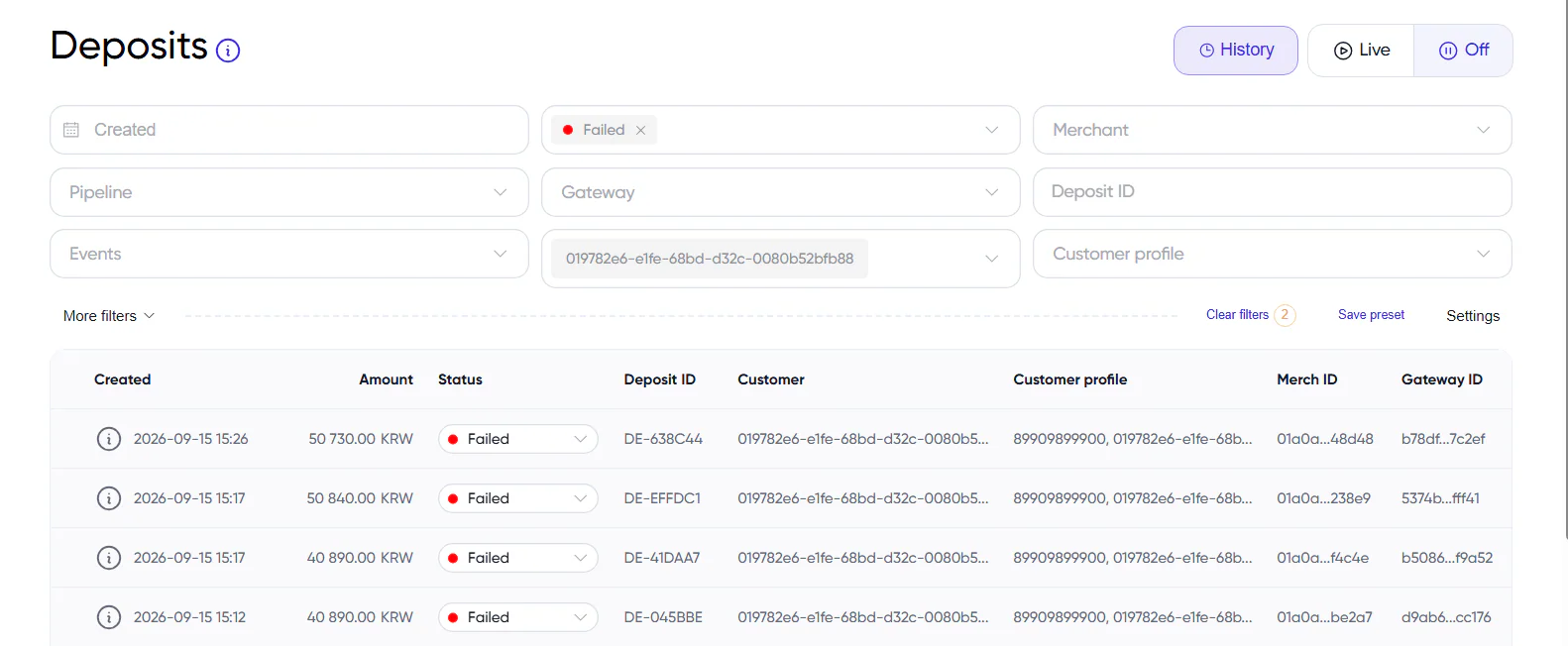
Customers and Customer Profile went live on 15 September 2026. Each payment is now linked to a customer, so you can filter payments by customer or by a specific payment profile, such as one card.
- CustomersPayments linked to customer records
- Payment profilesFilter by a specific profile, such as one card
- Payment historyThe past three months have also been processed
What changed
- Existing customer. Each payment is checked. If the customer is already in the database, the payment is linked to that customer record.
- New customer. If the customer is not yet in the database, a customer record is created and the payment is linked to it.
- Past three months. The same processing has been applied to all payments from the past three months, as well as new payments.
- Practical use. Filter payments by customer to review their payment history, or narrow the results to a payment profile, for example one card.
Planned next
- A customer list in a separate report and a dedicated customer analytics report are planned for future updates.